How to Compress a PDF Without Losing Quality
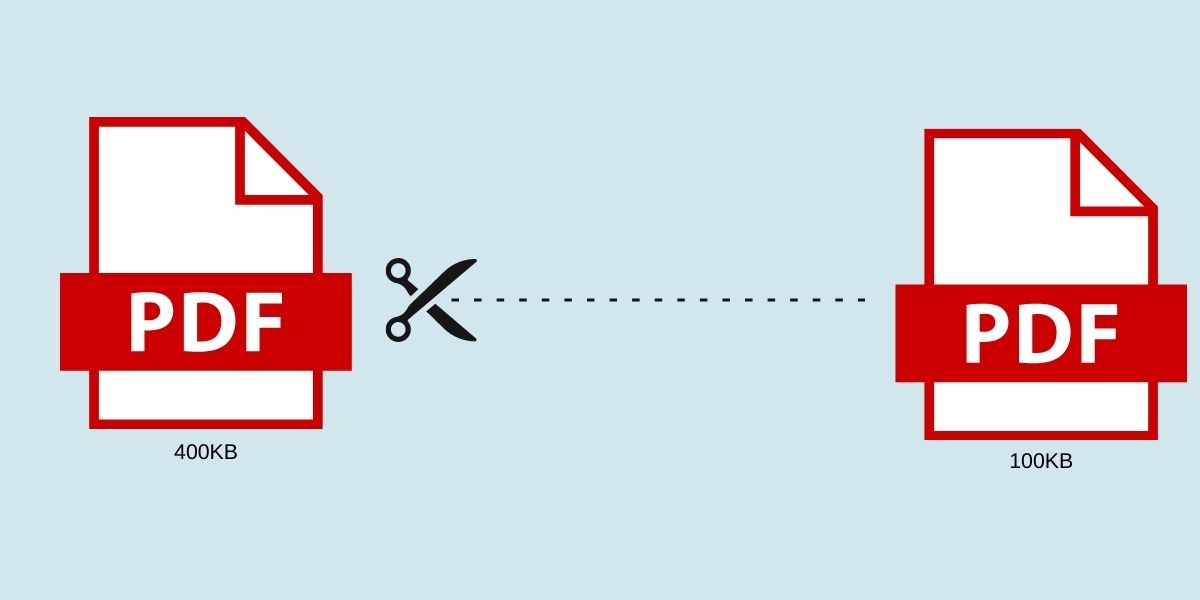
Large PDF files can be a headache when you need to send them via email or upload them to websites with file size limits. PDF compression solves this problem by reducing file size while preserving document quality.
Compression Levels Explained
SimplePDF offers multiple compression levels to suit different needs:
- Basic Compression: Minimal quality loss, suitable for documents that need to look perfect
- Strong Compression: Good balance between file size and quality
- Extreme Compression: Maximum size reduction for when file size is critical
How PDF Compression Works
Our tool optimizes images within the PDF, removes unnecessary metadata, and streamlines the file structure. The result is a smaller file that looks nearly identical to the original.
When to Use PDF Compression
- Email attachments: Most email providers limit attachment sizes to 25MB or less. Compressing your PDFs ensures they can be sent without issues.
- Website uploads: Many web platforms have file size restrictions. Compressed PDFs upload faster and take up less storage.
- Mobile sharing: Smaller files transfer faster on mobile networks and take up less space on devices.
How to Compress a PDF with SimplePDF
- Open the Compress PDF tool
- Upload your PDF file
- Select your preferred compression level
- Click 'Compress'
- Download your optimized file
Most documents can be reduced by 50–80% without noticeable quality loss. After compression, you'll see exactly how much space you saved.
Frequently Asked Questions
How much can I reduce my PDF file size?
Most documents can be reduced by 50–80% depending on their content. PDFs with many high-resolution images see the biggest reductions.
Will compression affect the quality of my document?
At Basic or Strong compression levels, the quality difference is barely noticeable. Extreme compression is best for documents where file size matters more than pixel-perfect quality.
Can I compress a PDF that's already been compressed?
You can, but the reduction will be smaller since the file is already optimized. Running compression again typically only shaves off a few percent.