Converting PDF to JPG: Best Practices and Tips
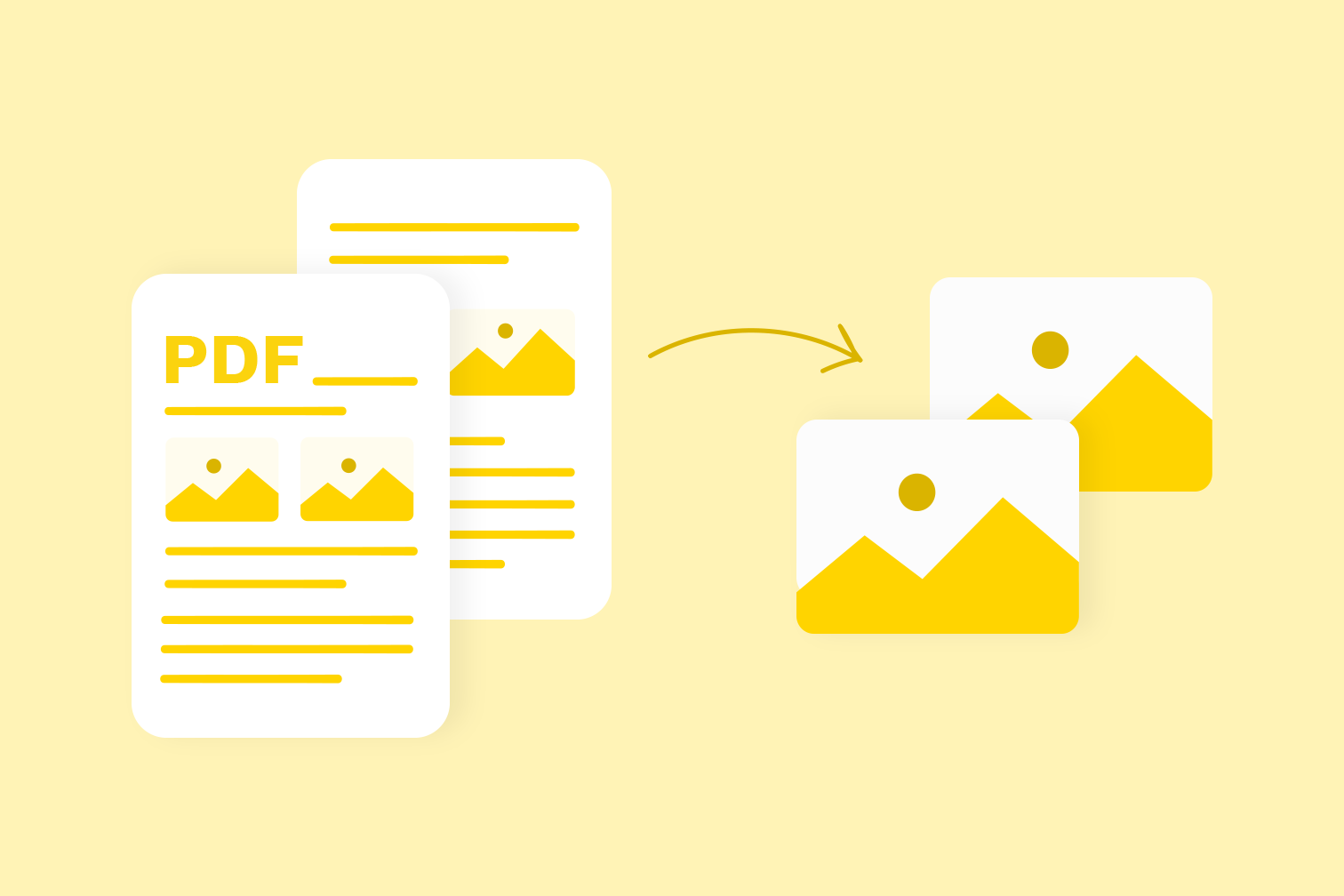
Converting PDF files to JPG images opens up many possibilities for sharing and using your document content. Whether you need images for a presentation, social media post, or website, PDF to JPG conversion makes it easy.
Why Convert PDF to JPG?
- Universal compatibility: JPG images can be viewed on any device without special software
- Easy sharing: Images are simpler to embed in emails, messages, and social media
- Presentations: Add document pages directly into PowerPoint or Keynote
- Web use: Images load faster than PDFs on websites
- Printing: Some printers handle JPG files better than PDFs
SimplePDF converts your PDF pages to high-quality JPG images while preserving clarity and readability. Each page becomes a separate image file.
Tips for Best Conversion Results
- Quality settings: Our converter produces high-resolution images suitable for both screen viewing and printing.
- Multi-page PDFs: Each page is converted to a separate JPG file. All images are packaged in a ZIP file for easy download.
How to Convert PDF to JPG
- Go to the PDF to JPG tool
- Upload your PDF file
- Wait for the conversion to complete
- Download your JPG images (ZIP file for multiple pages)
The conversion process is fast, typically taking just a few seconds even for longer documents. Your images are ready for immediate use.
For documents with important visual elements like charts, diagrams, or photographs, JPG conversion ensures these elements are captured exactly as they appear in the original PDF.
Frequently Asked Questions
What resolution are the output JPG images?
SimplePDF renders PDF pages at high resolution (2x scale) to ensure crisp, print-ready images. The output is optimized for both screen display and printing.
Can I convert a multi-page PDF to JPG?
Yes. Each page of your PDF becomes a separate JPG file. If your PDF has multiple pages, all images are packaged together in a ZIP file for convenient download.
Can I convert just specific pages from a PDF to JPG?
Currently SimplePDF converts all pages. To convert specific pages, first use the Split PDF tool to extract the pages you need, then convert the resulting PDF to JPG.